
Free online STL viewer
Open an STL on your phone or computer and see it in 3D, with its size in millimetres, how many triangles it has and whether it’s ready to slice. The file stays on your device.
What it shows you
- The model in 3D: turn it, zoom in and look underneath.
- Its size in millimetres, width × depth × height, the way your slicer will read it.
- How many triangles it has, its volume, and roughly how much PLA it takes if printed solid.
- Whether the mesh is closed and ready to slice, or has holes, with a free fix if it does.
- 3MF and OBJ files too: every object on every plate of a 3MF, in its own units.
What it looks like
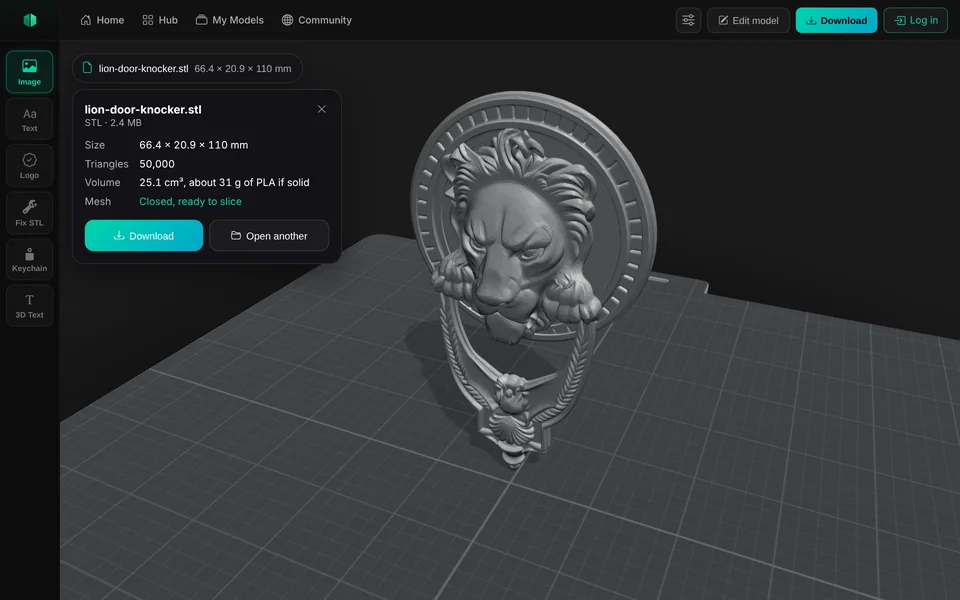
How to open an STL file online
Choose the file
Tap Open an STL, 3MF or OBJ file at the top of this page. On a phone, pick it from Files, Downloads or a cloud drive. On a computer, you can drag it onto the box.
Look around it
Drag with one finger or the mouse to turn it. Pinch or scroll to zoom, and drag with two fingers to move it.
Check the size
Tap the file’s name at the top of the view for its size, triangles, volume and whether it has holes.
Lay it flat or change the size
Under Edit model, Rotate or lay flat puts it on its steadiest side, or the side you tap, and sets its print height. Add a base gives a figure something to stand on.
Download it
Download gives you an STL or a 3MF of the model as it is now, or the file exactly as you opened it.
Your file stays on your device
The viewer reads the file in your browser. It isn’t uploaded, so it opens as fast as your phone or computer can read it, and nobody else sees it.
The one exception is Fix it, for a model with holes: that sends a copy to Remeshy’s free STL repair, only when you tap it.
Why a model can look tiny or huge
An STL file has no units. Slicers read the numbers in it as millimetres, and so does this viewer, so you see the size your slicer will.
If a model shows up a few millimetres across, it was probably made in inches or metres. Set the height you want under Edit model, Rotate or lay flat, and download it at that size. A 3MF file says its units, so it always opens at the right size.
Files it opens
| Format | What it opens | Download as |
|---|---|---|
| STL | Binary and text (ASCII) STL | STL, 3MF or the original |
| 3MF | Every object on every plate, from Bambu Studio, PrusaSlicer, OrcaSlicer and others | STL, 3MF or the original |
| OBJ | The shape (colours and textures are left out) | STL, 3MF or the original |
Up to 300 MB on a computer and 100 MB on a phone.
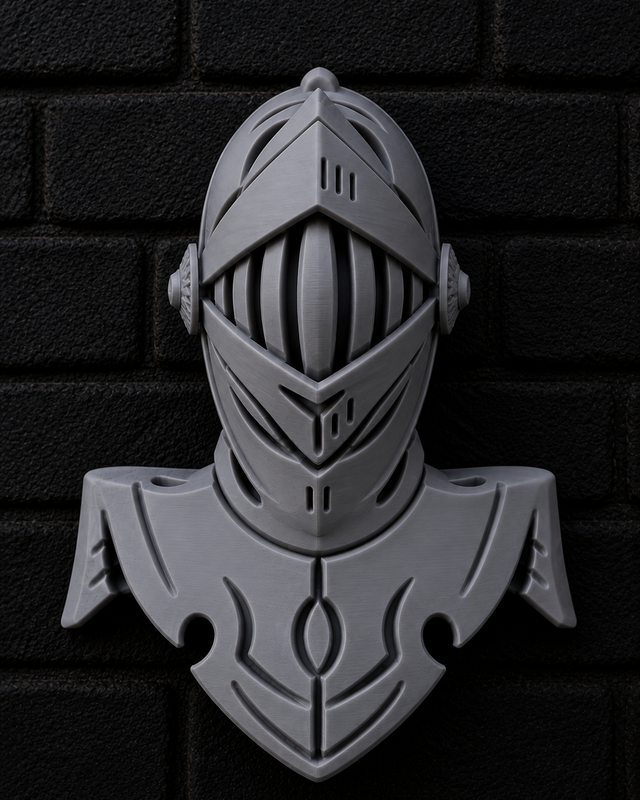
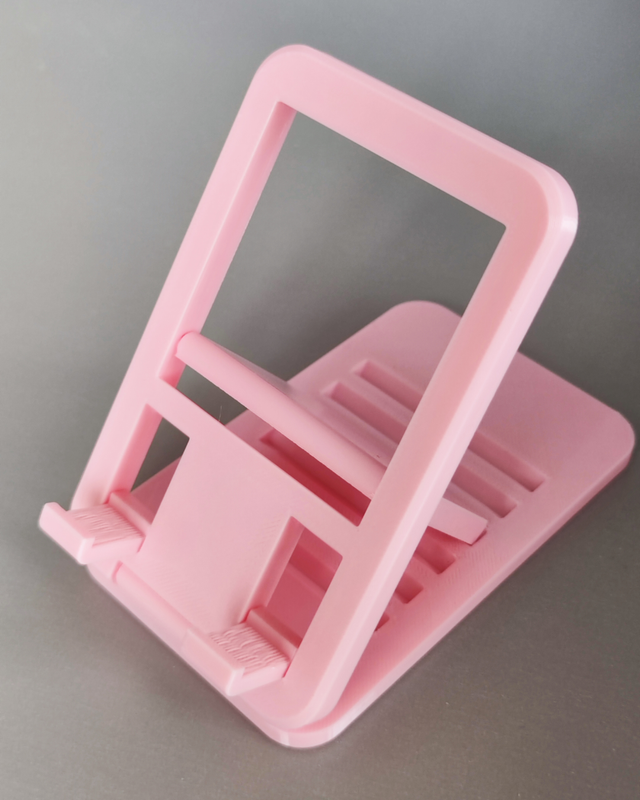
No STL yet? Make one
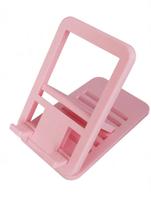
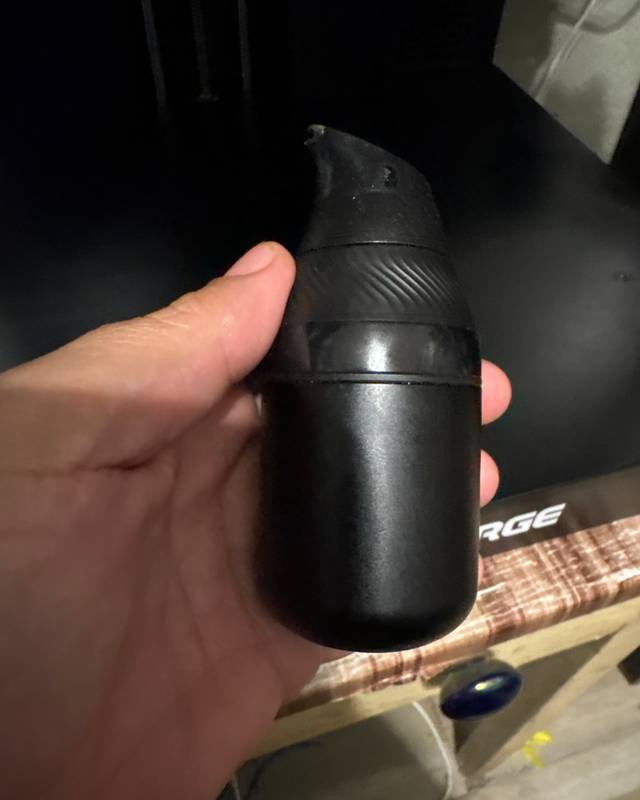
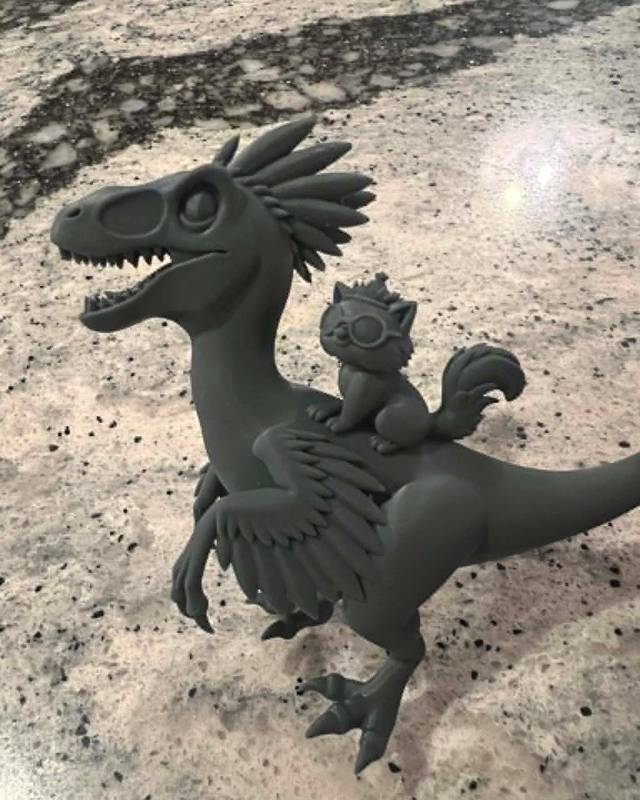
Real prints by Remeshy users. Each model started as a photo or a few words, made in Remeshy.

Questions people ask
Is the STL viewer free?
Yes. Opening, measuring, turning and downloading a file are free, with no account and nothing to install.
Is my file uploaded?
No. It opens in your browser and stays on your device. Only Fix it, for a model with holes, sends a copy to the repair tool, and only when you tap it.
Can it show the size of an STL?
Yes. Tap the file’s name at the top of the view: it shows width, depth and height in millimetres, plus triangles and volume.
Can I convert an STL to 3MF?
Yes. Open the STL, tap Download and choose 3MF. You can go the other way too: open a 3MF and download an STL.
Does it work on iPhone and Android?
Yes, in Safari, Chrome or any other browser. See opening STL files on iPhone and the STL viewer for Android.
What if my model has holes?
The viewer says so and offers Fix it, which runs Remeshy’s free STL repair and gives you back a closed, print-ready file.
Make your own model to print
Remeshy also turns a photo or a few words into an STL, ready for your slicer.